

How to create an event page with AI in under a minute
Describe your workshop, class or meetup in one sentence and let AI write the title, description and ticket types. Step-by-step, with example prompts.
· 5 min read
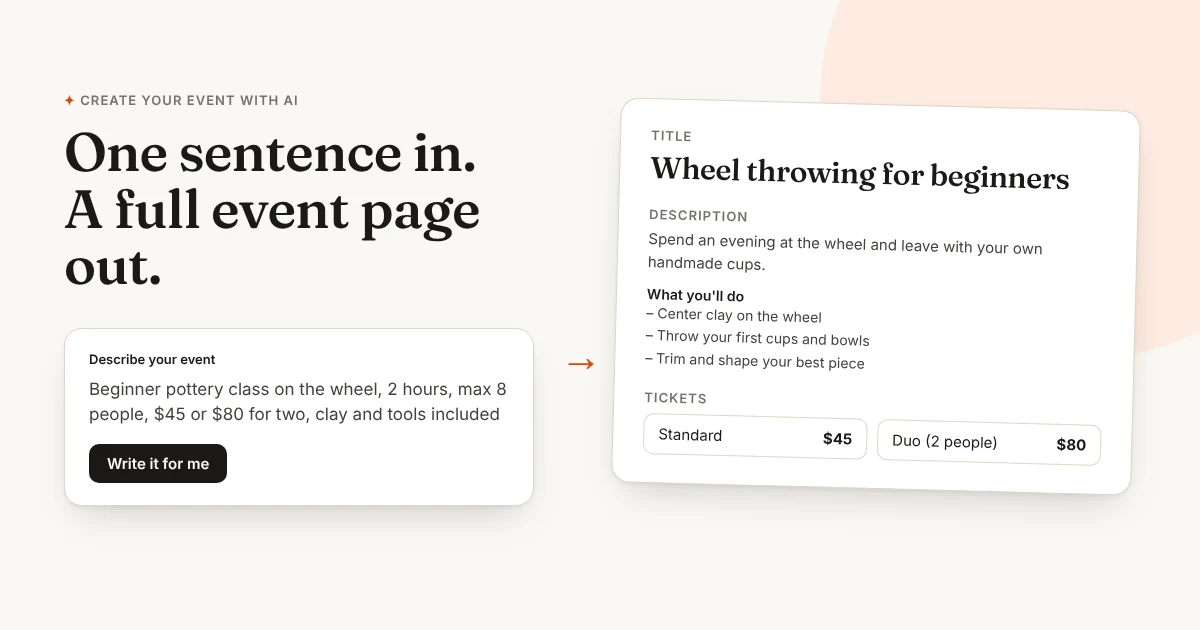
Writing an event page is the part most organizers put off. You know exactly what happens in your class, but turning it into a clear title, a description people want to read and the right ticket options takes an evening you don’t have.
With Passfinch you can now write one sentence about your event and get a complete first draft in a few seconds: title, description, location, currency and ticket types. You check it, change what you want, and save. This guide shows how it works and how to write a sentence that gives you a great result.
What the AI fills in for you
When you create a new event, the Create your event with AI box sits at the top of the page. You type a short description, click Write it for me, and the form below fills itself in:
- Title: short and clear, saying what people will actually do.
- Description: an opening paragraph, a “What you’ll do” list and a “Good to know” list (duration, group size, level, what’s included, what to bring).
- Location: only if you mentioned one.
- Currency: picked from the price you typed ($, €, £).
- Tickets: one to three ticket types with the prices from your sentence, for example “Standard” and “Duo”.
Nothing is saved until you click Create event, so you can rewrite, shorten or delete anything first.
Step by step
- Sign up or log in, then go to Events and click New event.
- In the Create your event with AI box, describe your event in one or two sentences.
- Click Write it for me. After a few seconds the title, description and tickets appear in the form.
- Read it once. Fix any detail that isn’t right and add what only you know: the exact address, a personal sentence, a cancellation rule.
- Add a cover photo if you have one, then click Create event.
- On the next screen, add your dates. You can add one date, or repeat it every week for up to 12 weeks in one go.
- If you sell paid tickets, set up payouts once (bank details and a few identity questions, about five minutes).
- Click Publish and share your link in your bio, on WhatsApp or by email.
Not happy with the first draft? Click Write it again for a new version, or change your sentence and try again.
Write a good one-sentence brief
The AI only knows what you tell it. It is told not to invent facts, so if you leave something out it stays general instead of making things up. The more concrete your sentence, the better your page.
Try to include:
- What it is and for whom: “beginner pottery class on the wheel”, “intermediate vinyasa workshop”.
- How long it lasts: “2 hours”, “Saturday morning”.
- Group size: “max 8 people”.
- Price, and any second option: “$45, or $80 for two”, “early bird £50”.
- What’s included: “all clay and tools included”, “wine and snacks included”.
- Where: the studio name and city, if you want them on the page.
Examples you can copy
A pottery class:
Beginner pottery class on the wheel, 2 hours, max 8 people, $45 per person or $80 for two, all clay and tools included, at Clay House studio, AustinA sound bath:
Evening sound bath with crystal bowls and gong, 75 minutes, 20 people, €25, bring a blanket and wear comfortable clothesA padel tournament:
Amateur padel tournament, Saturday morning, pairs only, £60 per team, early bird £50 per team, balls and water included, at Padel Club ManchesterA free meetup:
Monthly meetup for indie game developers, two short talks then networking, free, drinks not includedIf you don’t give a price, you get one free “General admission” ticket. You can set the price later on the event screen.
What it won’t do (on purpose)
- It won’t pick your dates. Dates are too important to guess. You add them yourself after creating the event.
- It won’t invent details. No made-up addresses, teacher names, reviews or awards. If it’s not in your sentence, it’s not on your page.
- It writes in English. You can describe your event in another language, but the page comes out in English.
There is also a daily limit of 30 drafts per account, which is plenty for normal use. You can always fill in the form yourself, without AI.
Make the draft yours
A first draft gets you 80% of the way. These small edits make the last 20% count:
- Add one personal line. “I’ve been teaching wheel throwing for 8 years and I keep groups small on purpose.” People book people.
- Say what they leave with. “You’ll take home 2 to 3 pieces after firing” is more convincing than “fun evening”.
- Answer the question you always get. Parking, dietary needs, age limit, what to wear. Put it in “Good to know”.
- Check the ticket names. “Duo (2 people)” is clearer than “Ticket 2”.
For more on the words themselves, see our guide on how to write an event description. If you’re unsure about the price, the workshop price guide walks through the maths.
How much does it cost?
The AI drafts are included in Passfinch at no extra cost. Passfinch itself is free to start: $0 per month, and a 3% fee plus card processing only when you sell a paid ticket. Free events cost nothing, and buyers never pay extra fees on top of your price.
Quick recap
- Go to New event and describe your event in one sentence.
- Click Write it for me to get a title, description and tickets.
- Read it, add your personal touch, and create the event.
- Add dates, set up payouts for paid tickets, publish and share your link.
Create your first event with AI. It takes about a minute.